Bing Merchant FAQ
Deals
Bing Ads Access
Credit Card
Activation / Migration
Agency Questions
Feed File Attributes
Uploading a Feed
Processing and Publishing Catalog
Improving Offer Relevance
Setting Tax and Shipping Rates
Catalog Display
Reporting
Managing Account
Getting Support
Opting Out
More Information
Shopping.com Partnership
Q: Why did Bing shopping partner up with Shopping.com?
A: Bing Shopping is committed to being the best starting point for people that want to make informed decisions and complete shopping related tasks. In that spirit, we are thrilled to announce a new partnership with Shopping.com that enhances our existing merchant listing program.
Q: What is the nature of this partnership?
A: Merchants can list their products on Bing shopping by contacting merchantsupport@shopping.com and submitting a data feed through Shopping.com. This route is recommended by us for the following benefits:
- Higher visibility: Paid offers will be highlighted throughout Bing Shopping, including search result and product pages.
- Quality experience: Better data helps power a richer and more engaging experience for all of our users.
- Efficiency: You will be able to manage your feeds using Shopping.com’s industry-leading tools across Bing Shopping and the Shopping.com network.
Q: Will I need to submit my free Bing feed if my Shopping.com offers are displaying?
A: If your current Bing feed is the same as your Shopping.com feed, then there is no need to send us your Bing feed anymore. However, if there are differences, you should modify your Bing feed to include only the items not found in your Shopping.com feed. Duplicate offers will not display in favor of your Shopping.com feed. For more information and FAQ on this partnership, please review the Merchant Integration Guide.
Back to top
Deals
Q: What is the Deals program?
A: By including a few columns in your feed, you can participate in the offer level deals program to show discounts on individual items/each offer in your feed. Products with these attributes will be displayed with a red price tag in the Bing shopping results which are more visible to the shoppers.
Q: How do I join the Deals program?
A: Add these 4 required deal columns to your regular data feed: PricewithDiscount, DealURL, DateStartDate, and DealExpirationDateTime. Upload your feed as you normally would and your deal offers will display within a few days. For additional columns and details on the deals program, please review the Merchant Integration Guide.
Back to top
Bing Ads Access
Q: Do I need a Bing Ads account to participate in Bing Shopping?
A: Yes, moving forward, all new merchants will need a Bing Ads account to participate in the Bing Shopping program. To get started, just go to Bing Ads
https://secure.bingads.microsoft.com/ and click the "Sign Up" button.
Q: We are a premium paid search advertiser with Microsoft. Our paid search administrator is our Account Manager from Yahoo Search Alliance. How do I proceed?
A: Please contact your paid search administrator and have them create a new Bing Ads account specifically for Bing Shopping under your company’s existing Bing Ads customer account. Tell them that no paid search campaigns will need to be created and this can be used for Bing Shopping only. Once the Bing Ads account has been created, the paid search administrator can also create a user account for you to log in and access the Bing Shopping Account Management under the Tools tab.
Q: My company does paid search with Bing Ads, but I separately manage a Bing Shopping program. How do I proceed?
A: Please contact your paid search administrator and have them create a new Bing Ads account specifically for Bing Shopping. Tell them that no paid search campaigns will need to be created this and this can be used for Bing Shopping only. Once the Bing Ads account has been created, the paid search administrator can also create an user account for you to log in and access the Bing Shopping Account Management link under the Tools tab.
Back to top
Credit Card
Q: Part of the registration process requires me to enter in my credit card number. Is Bing Shopping still a free program?
A: The Bing Shopping program is still free. However, Bing Ads account setup requires a credit card number in order for the registration to be complete. Completing this part of the Bing Ads process is not required for Bing Shopping and, even if completed, your card will not be charged for services related to Bing Shopping.
Q: I do not want my credit card on file with Bing Ads, what are my alternatives?
A: This is a hard requirement of the Bing Ads at this time. Bing Shopping is now part of Microsoft Advertising Solutions and a Bing Ads account must be created; you will not be charged unless you choose to run paid search campaigns.
Back to top
Activation / Migration
Q: Are there step-by-step instructions available to me?
A: Yes, please download our Bing Shopping Merchant Integration Guide.
Q: I am live on Bing Shopping right now and wish to start using the new portal immediately. May I migrate my existing account now?
A: Absolutely, please do so.
Q: I have been given an account for the current merchant center, but my account is not yet live on Bing Shopping? Do I need to take any action?
A: We recommend that you move to Bing Ads platform right now and migrate your current (inactive) account. Your account will be migrated in the state it is currently in and no information will be lost or modified.
Q: I was on my last step of activation with the onboarding staff. Why can’t you just activate me and let me migrate later?
A: The work you have done will easily be repurposed with the new portal, and registration only takes a few minutes. There would be no time savings to complete launch with the existing platform, particularly when a switch to the new portal is imminent.
Q: I have not used Bing Ads before and have completed initial sign-up of Bing Ads account. How do I now migrate my Bing Shopping account?
A: After you have successfully created your Bing Ads account, go to ‘Tools’ and click on ‘Bing Shopping Account Management’. It will then prompt you to either create a new Bing Shopping account or migrate your existing Bing Shopping merchant center account.
Q: Does use of the Bing Ads platform require me to do paid search as well?
A: No, you will not be required to do paid search in addition to Bing Shopping, but the use of this portal ensures that you will always have that option.
Q: I am a new merchant onboarding with the new portal. How will I know when I have been activated?
A: All newly created account will undergo an initial review which normally takes about 3-4 business days. When this is completed, you will receive an email notifying you of the results. You can also see the status in the Store Settings tab of your Bing shopping account.
Q: When I log in to my Bing Ads account, go to Tools > Bing Shopping Account Management, and choose Migrate an Existing Account, I am prompted for a user name and password. Which user name and password should I enter?
A: During account migration, after you log in to Bing Ads and go to the Bing Shopping Account Management tab, please enter your old Bing Merchant Center user name and password.
Q: Have your product restrictions changed at all?
A: Our product restrictions have not changed. For a complete list of all product restrictions please visit our Product Restriction Page.
Q: Is this program open to merchants outside the U.S.?
A: No, Bing Shopping is still restricted to merchants domiciled in the U.S. You are not considered domiciled in the U.S. unless you have a U.S. Employer Identification Number (EIN).
Q: When I click on the Bing Shopping Account Management link, I get a message saying “Account management is not authorized.” What should I do?
A: Every Bing Shopping account is tied to only one unique Bing Ads account. If you are receiving this message, it means that you currently don’t have access to this account. To get access, you must ask the super admin (who manages the Bing Shopping account) to create a user profile with the necessary access roles and provide them to you.
Q: I have completed all of the account setup for the Bing Shopping in Bing Ads, however I have this warning flag: “Note: you haven't set up your catalog information yet. The next step is to create a catalog on the Catalog Management page.” What am I missing?
A: Please select the “Save” button on the Catalog Management page.
Q: My feed status indicates “ok” but I still don’t see my products on Bing. What is the issue?
A: ‘OK status’ means that your feed was received by our system, but your products will still need to be processed by our system before they will display on the live site. Please see the troubleshooting steps in the Merchant Integration Guide.
Back to top
Agency Questions
Q: I am an agency and manage hundreds of accounts. Can I manage all of these with one login?
A: No, just as with the previous system, each merchant will require a unique log in to Bing Ads.
Q: I am an agency. My client has access to Bing Ads but is not comfortable sharing their account information with me. What can I do?
A: If you currently manage your client’s Bing Shopping merchant account, then your client will need to first migrate their Bing Shopping merchant center to Bing Ads, and then create a separate user account for you to continue to manage their account. Please see the question on how to create Bing Ads accounts.
Q: I am an agency and all of my clients have existing Bing Ads Accounts. Can I utilize their existing accounts?
A: Yes, if your client (the merchant) is already using Bing Ads, then each client can create a user account for you after your client has completed migration to Bing Ads. Please see the question on how to migrate your current Bing Shopping account to Bing Ads platform.
Q: I am an aggregator and would like to put offers from multiple merchants into one feed. Can I do this?
A: Contact our support team for information at: http://advertise.bingads.microsoft.com/en-us/bing-shopping-support.
Feed Format and Attributes
Q: Is there any convention I must follow for naming my data feed files?
A: We recommend using the standard feed name bingshopping. Previous Bing cashback merchants can continue to use cashback. However, you can choose your own by changing the feed name under the Catalog Management tab of your Bing shopping account.
Q: What file types are accepted as data feed files?
A: The following file types are accepted:
-
Uncompressed text (bingshopping.txt)
-
ZIP compressed (bingshopping.zip)
-
GZIP compressed (bingshopping.txt.gz)
Q: Can I submit a data feed in any other format (XLS, XML, other Shopping Engine feeds, etc)?
A: No, we only accept the 18 column data feeds (18 also for former Bing cashback merchants) that meet our specifications and are saved as a text tab-delimited file.
Q: What are the feed format requirements?
A: You can find all of the details in the Merchant Integration Guide. Here is an overview:
-
Header row is required – Please refer to our Data Feed Attributes Quick Chart
-
Each line can only contain one product listing
-
Bing Shopping requires 6 columns and highly recommends 3 additional columns
-
TAB-delimited
-
File type Dos\Windows with character Set/Encoding: UTF-8
-
Each data feed file will overwrite any previously uploaded product data. Incremental updates are not currently supported
-
Merchants must upload a new data feed at a minimum of once every 30 days, or a maximum of once per day.
Q: What are the feed attributes required?
A: The minimum requirement for a valid feed is the following fields:
-
Merchant’s Product ID (MPID)
-
Product Title
-
Product URL
-
Price
-
Description
-
Image URL
Other highly recommended fields are:
- MPN
- SKU
- Bing Category (Leaf Node)
- Stock Status
- Brand
- UPC
- Availability
- Shipping
- Merchant Category
- Shipping Weight
- Condition
- Tax
Q: Do I need to categorize my products?
A: Yes. Our Bing Shopping Catalog is organized by categorizing offers. Providing leaf node categories is recommended. At minimum, please provide the top level categories in our taxonomy, so that your customers can easily find and view your offers even if they don’t know the name or title of the product.
The top level Bing categories are:
-
Arts & Crafts
-
Baby & Nursery
-
Beauty & Fragrance
-
Books & Magazines
-
Cameras & Optics
-
Car & Garage
-
Clothing & Shoes
-
Collectibles & Memorabilia
-
Computing
-
Electronics
-
Flowers
-
Gourmet Food & Chocolate
-
Health & Wellness
-
Home Furnishings
-
Jewelry & Watches
-
Kitchen & Housewares
-
Lawn & Garden
-
Miscellaneous
-
Movies
-
Music
-
Musical Instruments
-
Office Products
-
Pet Supplies
-
Software
-
Sports & Outdoors
-
Tools & Hardware
-
Toys
-
Travel
-
Vehicles
-
Video Games
For a description of each category, please refer to the Merchant Integration Guide.
Q: When we create feeds, we have one MPID for each product, but we do not currently have MPN, UPC, or ISBN. What can I do to make to improve searches for my products?
A: If this is the case, you are free to list the MPID in the MPN field for each product.
Q: If I am a clothing retailer, where do I place the style number in Data feed?
A: Many clothing retailers often use the SKU column for their style number.
Q: Does the Bing Shopping Program support used or reconditioned products?
A: Currently we do not display any used or reconditioned products in the Bing Shopping program.
Q: I have many products that only differ in size, color, etc. How do I include them in the feed?
Uploading a Feed
Q: My FTP credentials don’t work. How do I reset my FTP password?
A: You can manage your FTP credentials and reset your FTP password in the FTP Settings tab of your Bing shopping account. Simply type in your new password and click Save then wait 15 minutes before trying to login again. Please note that FTP passwords must be at least 6 characters long, alphanumeric, and include a special character. Keep in mind that the number of characters will always remain 6 even when you reset the password, but this doesn’t mean that your changes didn’t take effect. If
this procedure doesn’t work, please review the Merchant Integration Guide.
Q: Where do I upload my data feed?
A: Upload your data feed to ftps://feeds.adcenter.microsoft.com/ using an FTP Client. There is no way to upload a data feed using your Bing Ads account.
Q: Why is the link ftps://feeds.adcenter.microsoft.com/ not working when I click on it?
A: ftps://feeds.adcenter.microsoft.com is the name of our FTP server and it is not a link. You need to have an FTP Client to upload your data feed.
Q: Can I upload several data feeds in one day?
A: There is no need to upload more than one feed in a 24 hour period, since our indexes only run once every 24 hours. Please allow up to 48 hours for changes (depends on extent) to take effect before contacting us, if any issues develop or changes have not implemented.
Q: I have problems uploading my feeds, how can I get support?
A: For all Merchant Administration questions, please start by visiting our Bing Shopping Merchant Page, where you can use several resources including our merchant FAQ and Merchant Forum for community support. Please review the Merchant Integration Guide for more troubleshooting steps as well.
Processing and Publishing Catalog
Q: How are data feeds processed? What happens when I remove or add a product to the datafeed?
A: We take the latest data feed you upload to the FTP Server and check it against your current products on the site. If an item is removed from the feed, we remove it from our listings. If an item’s price is changed, we change it on our listings, etc. All product offerings stay on the site, even when there isn’t a merchant selling that product, but they are not accessible through the search function. Once any merchant adds an item to their data feed, the offering becomes active in search again. The only way a customer could access an out of stock item is by bookmarking the link to that page.
Q: I have uploaded my first feed. How long does it take for my offers to be published?
A: New Feeds can take up to 14 days to be properly categorized, matched with other offers, and displayed on our site. In some cases, you may have given us enough information about each offer to meet our minimum standard, but not enough to categorize your products quickly. Please contact us if your products are still not visible after 2 weeks. Please allow up to 48 hours for changes (depends on extent) to take effect before contacting support if any issues develop or changes have not implemented.
Q: How do I know my offers are searchable at bing.com/shopping?
A: Please check the “Recent Feeds” section under the Catalog Management tab of your Bing shopping account. If your feed status is ok, date stamp is less than 30 days and attributes are according to specs, your products will display within 14 business days from your first upload. Every update after that will take up to 48 hours to reflect. Try searching for your exact product titles on Bing shopping to find your products
Q: I have dropped a new feed, but I cannot find my products on Bing Shopping. What is happening?
A: After you’ve uploaded your feed for the first time, please allow up to 14 business days for your products to appear on Bing. After this, every feed update will take up to 48 hours to reflect. In some cases, you may have given us enough information about each offer to meet our minimum standard, but not enough to categorize your products quickly. Please contact us if your products are still not visible after this time.
Q: Why aren’t certain products showing up on Bing Shopping?
A:
- The most common reason why offers do not appear is due to incorrect information in the feed. Check to be sure all required fields contain valid and correct information. If there is no information, or the information is not valid, the individual offer will not be shown.
- Proper feed format, including headers, will help also to ensure your columns are not shifted. A shifted column can put good information in the wrong field, making it appear to be incorrect, and ultimately keep your offers from being published. Be sure no unrecognized abbreviations, misspellings or spaces appear in header titles.
- Be sure not to use quote-wrapped text in columns, or HTML characters in descriptions or titles.
Improving Offer Relevance
Q: Are there any optimization tips to help ensure that my offers are visible to shoppers?
A: We highly recommend that you offer us as much information as possible to assist with our classification process, particularly category information. Your relevance will be much better if we can group your offers with other merchants selling the same item.
Additionally, review your feed and ensure that you are not making any of the common mistakes listed below. Specifically:
- Please ensure there are no quotation marks wrapping entire text fields such as description and title in your data feed
- Write all numerical values to a precision of 2 decimal points, i.e. 15.00
- Price and shipping fields should contains no symbols or text, i.e. $, N/A
- Verify there are no spaces before, after or between header titles, and that all titles are an exact match of values shown in the Merchant Integration Guide
- Ensure no misformatted rows, blank columns, or missing ‘CR\LF’ at end of rows
- Each line in your feed should contain only one product listing
- All files should be tab delimited formatted in Dos\Windows and encoded in UTF-8
- Image URL is a required field and cannot be the same as your Product URL
- MPIDs must be unique for the lifetime of the product and be consistent between data feeds
- If StockStatus or Availability is utilized, only items noted as In Stock will display. Please do not use values other than In Stock; Out of Stock; Pre Order; or Back Order
- If Condition is utilized, only items noted as New will display
- Delimiters for your category field should be | or , or >
- No HTML characters in any text fields
- Ensure that you are not selling any restricted products.
For additional information regarding the creation and submission of product feeds; please refer to the Bing Shopping program Merchant Integration Guide.
Q: What can I do to ensure the freshness of my offer data?
A: Although we require merchants to refresh their feeds every 30 days, we highly recommend that merchants provide us a fresh data feed every 24 hours to ensure accurate pricing and product information.
Q: Why is my offer duplicated on Bing Shopping website?
A: The ID you assign to a product (MPID) should be consistent between feed updates. If you change the MPID when you update a feed, we will publish both offers: the old one and the updated one. Please ensure each product appears with a unique MPID only once in your feed, so we will always show up to date information about your offers. If you subscribe to a search service such as Price Grabber, be sure to inform them not to include you any longer in the Bing Shopping data feed.
Q: No image/product display?
A: Ensure your images are crawlable in the Robots.txt file of your website. Our crawling agent bingbot must be allowed to crawl your site or your products will not display.
Setting Tax and Shipping Rates
Q: I have variable shipping and tax costs depending on distance and shipping speed. How do I set these for my entire catalog and/or account?
A: In Bing Ads, you can indicate free shipping for all of your products by clicking the free shipping box under the store settings tab in your Bing shopping account. If you have variable shipping and tax rates, you can use the shipping and tax tabs to configure specific settings for your entire catalog. Please keep in mind that shipping and tax attributes in your feed will override these settings.
Q: How do I set variable shipping and tax rates for each product I have?
A: You can set independent tax and shipping rates for each offer in your catalog by utilizing these attributes in your feed. However, you must provide their values according to our specs for a functional implementation. Each shipping attribute group must be separated with a comma and the four sub-attributes by colons such as: Country:Region:Service:Price. The rate/price and three colons are required even for blank values. The same rules apply to each tax attribute which is formatted as: Country:Region:Rate:Tax_Ship. For more detailed information, please review the Merchant Integration Guide.
Catalog Display
Q: How will customers view my offer?
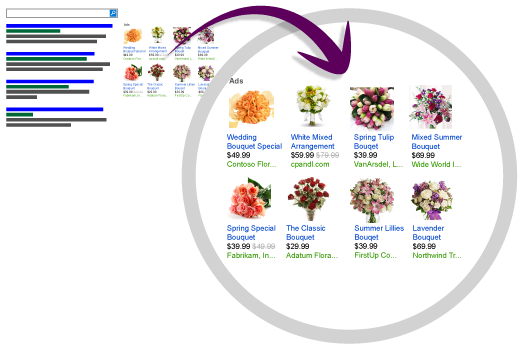
A: Your customers will view the Bing Shopping product catalog (Figure 1) and be able to click through to your specific offer (Figure 2).
Fig 1

Figure 2

Back to top
Reporting
Q: Is there a report that tells me how many offers are displaying?
A: Yes, the Publishing Report is available under the Catalog Management tab for your Store.
Q: How do I get feed performance reporting?
A: You can get a detailed report for your offers clicks and impressions in the “Performance Feedback” tab of your Bing shopping account.
Q: I am former Bing cashback merchant, and Bid Management in the Merchant Center is no longer displaying my offer count.
A: Bid Management in the Merchant Center was disabled with the launch of Bing Shopping.
Managing Account
Q: What if I lost the FTP Server and the Merchant Center credentials, how can I get them back?
A: You can reset your password in the FTP settings tab of Bing Ads. For further assistance, please visit our Additional Resources section of the Bing Shopping Merchant site.
Back to top
Getting Support
Q: What if I have other questions about the Bing Shopping program on-boarding process?
A: For further assistance, please visit our Additional Resources section of the Bing Shopping Merchant site.
Q: What if I have other questions about the Bing Shopping program?
A: For all Merchant Administration questions, please start by visiting our Bing Shopping Merchant Page, where you can use several resources including our merchant FAQ and Merchant Forum for community support.
Opting Out
Q: I have a specific product searchable on Bing Shopping, but now I want to take this product out of Bing Shopping. What should I do?
A: Simply update your feed by deleting the specific product’s line and upload the feed.
Q: I want to take an entire catalog out of Bing Shopping. What should I do?
A: To disable your feed, uncheck the “Enable Feed Publishing” checkbox under the Catalog Management tab of your Bing shopping account and click Save.
More Information
Bing Shopping Program web site:
http://advertising.microsoft.com/search-advertising/bing-shopping
Additional Resources:
http://advertising.microsoft.com/bing-merchant-resources
Contact the Bing Shopping team directly:
http://advertise.bingads.microsoft.com/en-us/bing-shopping-support